
SUPPORT
Set up TermGlow with confidence.
This guide explains the complete workflow: create a list, control where it runs, refine matching, navigate results, and keep your data under control.
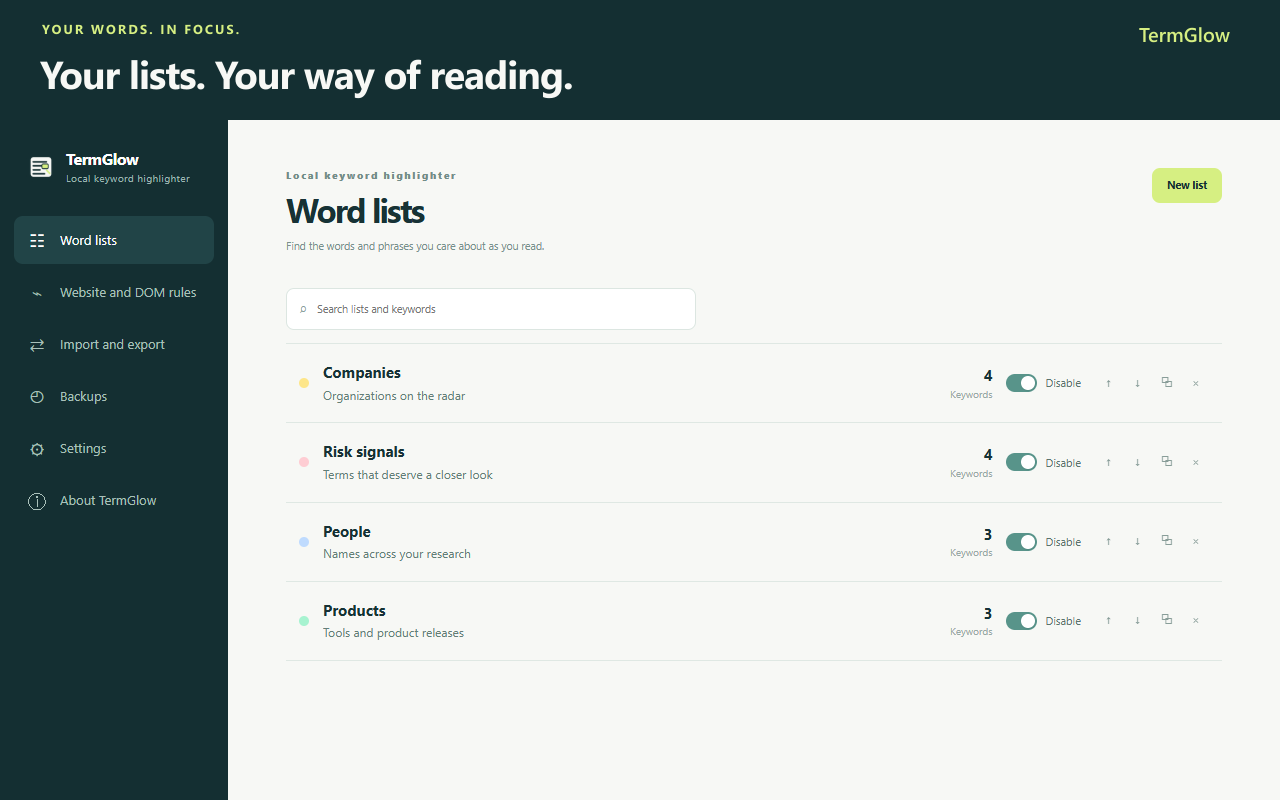
1. Create your first list
- Open Word lists. Choose New list and give the list a recognizable name.
- Add the terms. Enter one word or phrase per line. Empty lines are ignored.
- Choose the style. Set the background, text color, border and optional emphasis in the preview.
- Save and enable. The list must be enabled before it can produce highlights.
2. Choose the right matching mode
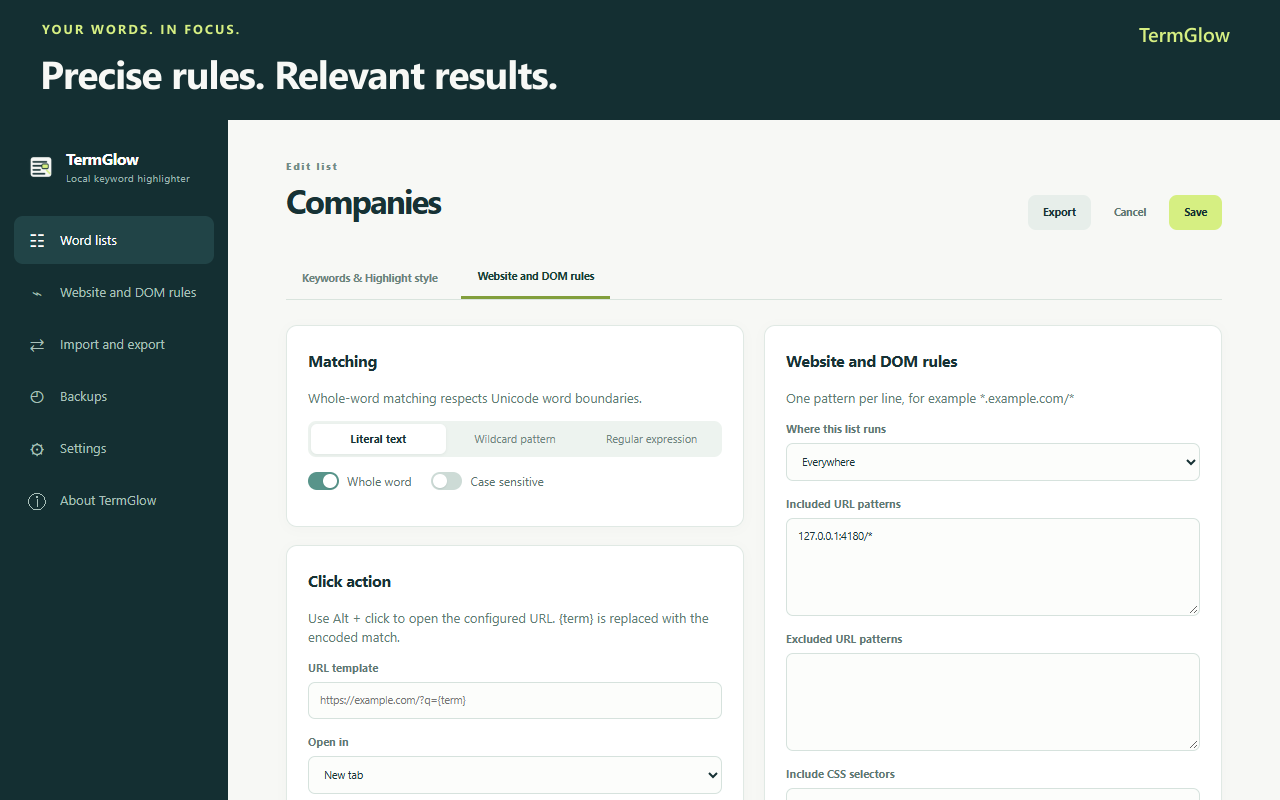
Open a list and use the matching controls in Keywords & Highlight style:
- Literal text finds the exact characters you entered.
- Wildcard pattern uses
*for any number of characters and?for one character. - Regular expression provides RE2-style patterns. Unsupported or invalid patterns are reported instead of taking down the extension.
- Whole word respects Unicode word boundaries.
- Case sensitive distinguishes uppercase and lowercase letters.
3. Limit a list to the right pages
Switch to Website and DOM rules when a list should not run everywhere:
- Use included URL patterns for a site or path, for example
https://example.com/*. - Use excluded URL patterns for pages that must stay untouched.
- Use CSS selectors to include or exclude parts of a page. Global excludes take priority over list rules.
- Choose whether a list runs everywhere or only on the configured scope.
After changing rules on a page that is already open, reload that page. Chrome internal pages, the Chrome Web Store and its PDF viewer do not allow normal extension highlighting.
4. Read and navigate matches
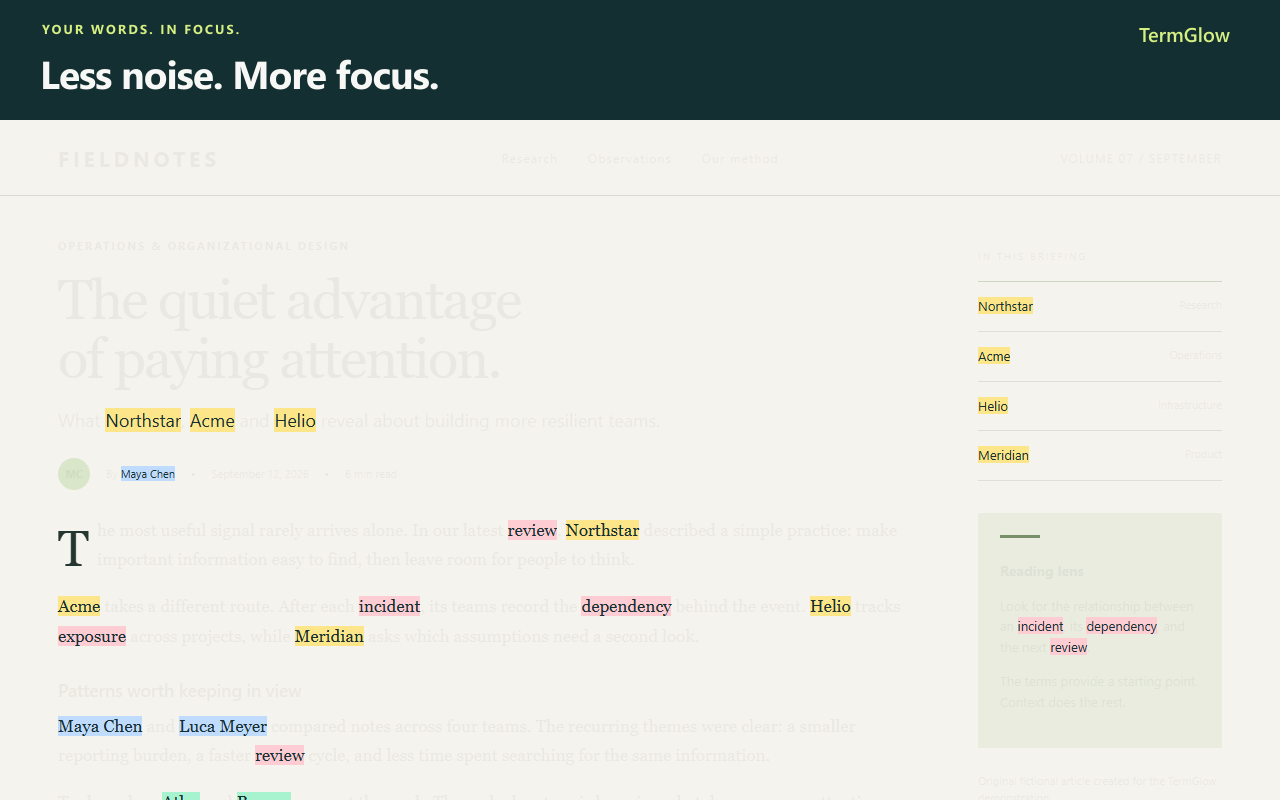
Open the extension popup on the active page. It shows the match count, the current page, page and extension toggles, keyword/list filters, and previous/next navigation.
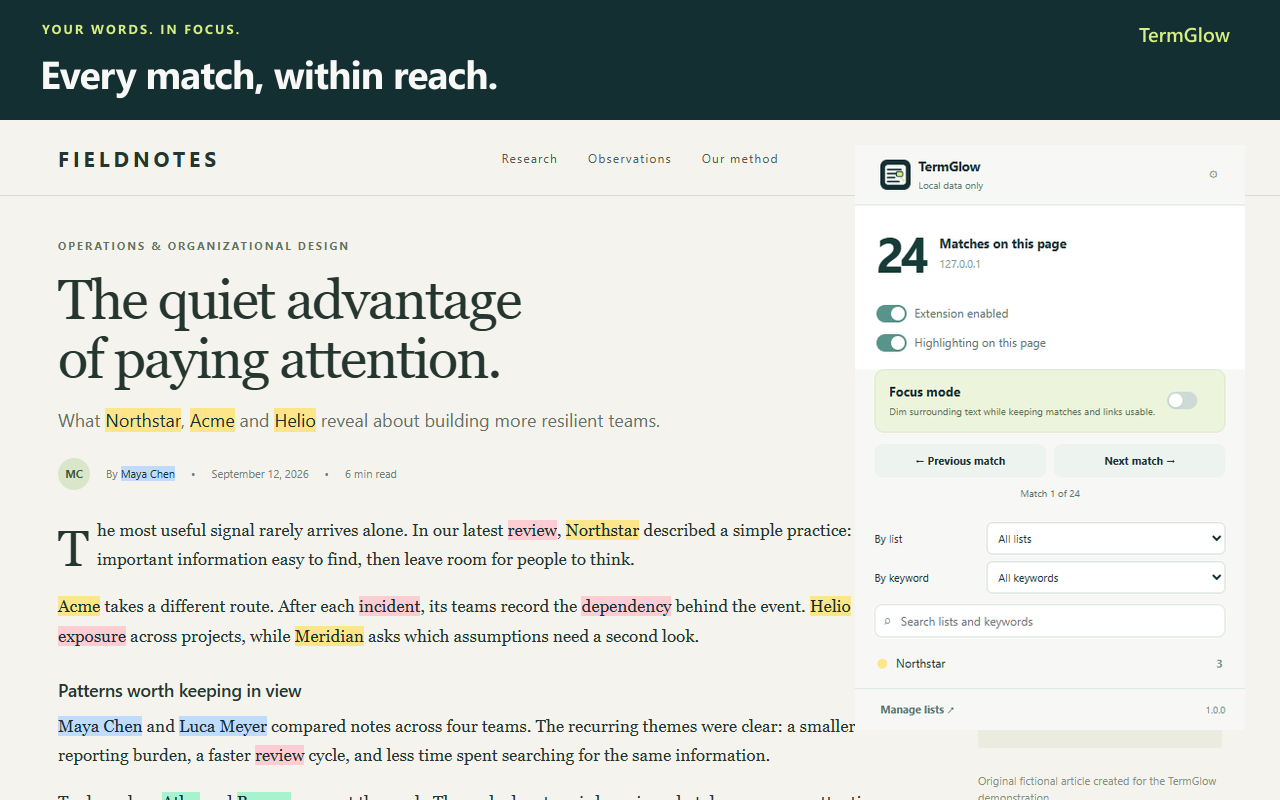
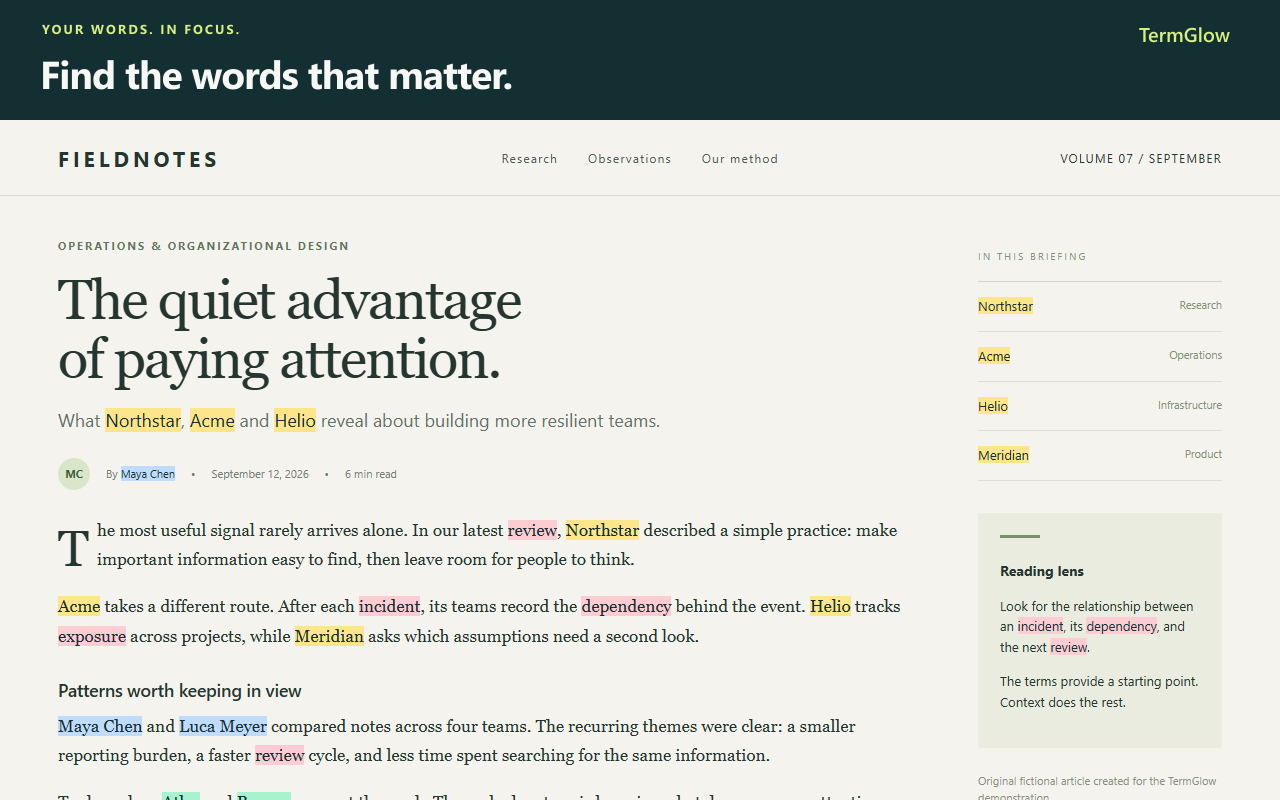
Use Focus mode when surrounding text should be dimmed while matching terms and links remain usable. The extension can continue to react to supported dynamic page content.
5. Use click actions without hijacking links
Configure a URL template containing {term}. When you use Alt + click on a match, TermGlow replaces the placeholder with the encoded term and opens the configured destination. An ordinary click keeps the page's normal link behavior.
6. Import, export, sync and backups
- JSON export creates a local snapshot of your settings and lists. Use it before large edits.
- JSON, TXT and CSV import supports merge or replace and validates the input. Imports are limited to 20 MiB.
- Chrome Sync is an explicit upload/download snapshot for selected lists. It is not continuous synchronization and remains subject to Chrome storage quotas.
- Backups are user-initiated or configured in the extension. Downloaded files stay under your control.
7. Remote lists and permissions
Remote sources must be HTTPS TXT, CSV or JSON. TermGlow treats the response as data, validates it, sends no cookies or referrer, and does not execute downloaded content. A minimum scheduler interval prevents frequent background fetches.
Optional notifications, remote-source access and downloads require their respective Chrome permissions only when you enable the feature. If a permission is declined, the rest of the local highlighting workflow remains available.
Troubleshooting checklist
There are no highlights.
Confirm that the extension and the list are enabled. Check the URL include/exclude rules, global excludes, matching mode, site access and the page type. Then reload the page. Chrome internal pages, PDF viewers, canvas text and closed Shadow DOM cannot be highlighted reliably.
The list changed but the open page looks the same.
Reload the open page after changing a list, URL rule or DOM selector. A fresh page load gives the content script a new document to process.
Some words match unexpectedly.
Enable Whole word when a term should not match inside another word, enable Case sensitive when capitalization matters, or switch from literal to wildcard/regex matching intentionally.
A remote source does not update.
Check that the URL uses HTTPS and returns valid TXT, CSV or JSON. Verify the requested host permission and remember that the scheduler observes a minimum interval.
How do I remove all local data?
Open Backups, choose the reset action and confirm. This is destructive for local TermGlow data. Export a JSON backup first if you may need the lists again.
Still need help?
For a bug report or a privacy question, use the publisher contact page. Please include the affected feature, the page type and the steps that reproduce the issue. Do not include private page content or exported lists unless you intend to share them.
TermGlow is local-first, but no browser extension can modify every Chrome page type. The documented limitations above are expected browser boundaries.